Download Tether App
If you’re looking to enhance your TP-Link router experience, the Tether app is a must-have. And the best part? It’s completely free! The Tether app allows you to easily manage and control your network settings from anywhere, at any time.
To get started, simply head over to the Google Play Store or Apple App Store and search for “TP-Link Tether.” Once you find the app, click on the download button and let it install on your smartphone or tablet.
Once downloaded, open the Tether app and follow the simple on-screen instructions to connect it with your TP-Link router. With just a few taps on your device, you’ll have complete control over your Wi-Fi network. From adjusting parental controls to managing guest networks, everything is just a tap away.
The user-friendly interface of the Tether app makes it easy for anyone to navigate through various settings without any technical know-how. Plus, with real-time notifications and updates, you’ll always stay informed about what’s happening in your network.
So why wait? Enhance your TP-Link router experience by downloading the Tether app today!
Install Tether in Three Steps for Apple Devices
Use a compatible iOS or Android phone and follow these steps to get the app ready for router setup.
1
Open Your App Store
On your iPhone or iPad, open the App Store. On an Android device, open Google Play.
2
Find the TP-Link Tether App
Search for “TP-Link Tether” and check the app listing to confirm TP-Link is the publisher.
3
Install and Launch
Tap Get or Install, then open Tether and follow the prompts to begin setting up your compatible router.
Step 1
Connect the Router
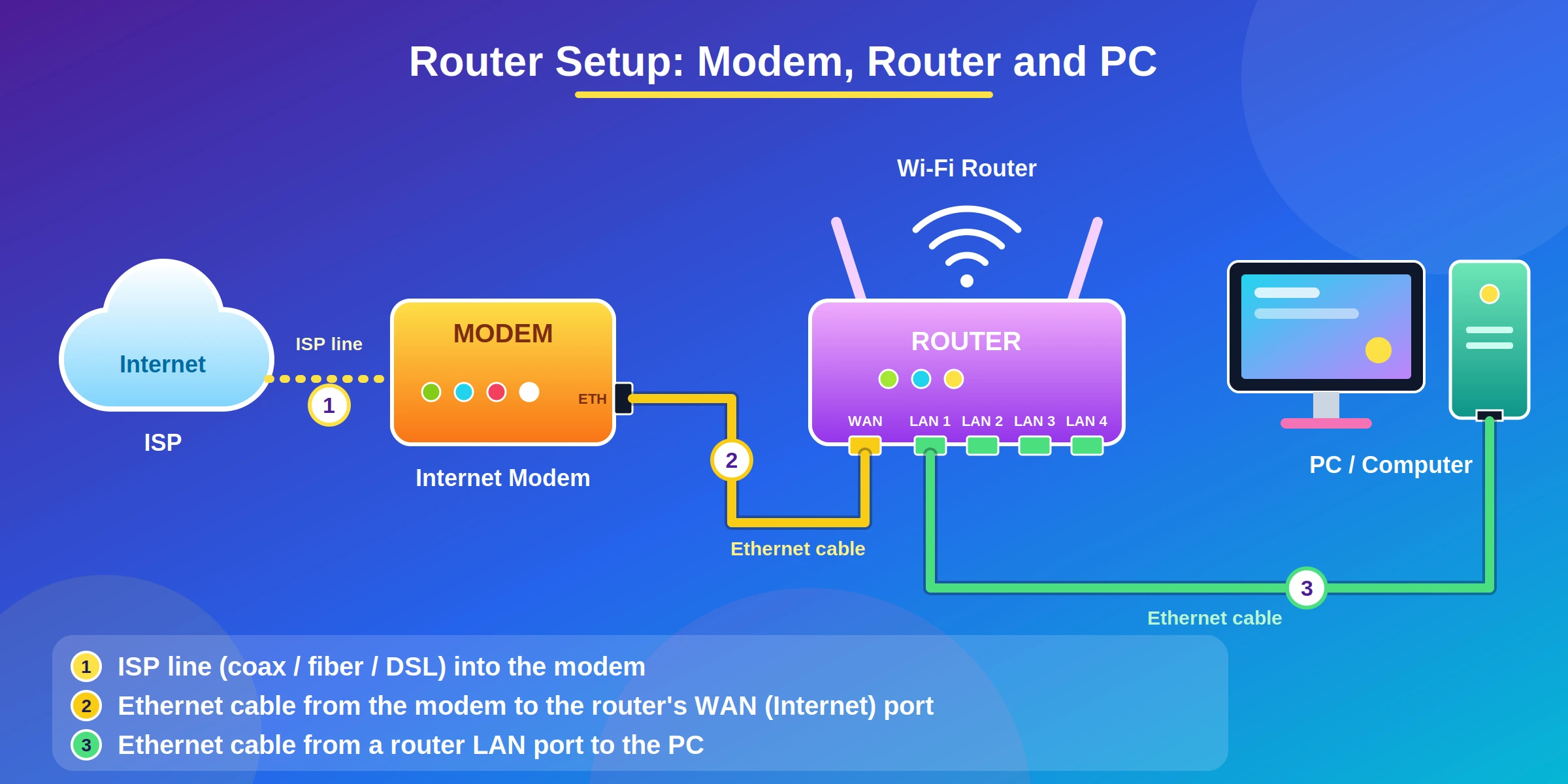
Connect your modem to the router’s WAN port, then power on both devices. Wait until the router’s status light indicates it is ready.
Step 2
Join the Default Wi-Fi Network
On your phone, connect to the Wi-Fi network printed on the router’s label. Keep your phone near the router during setup.
Step 3
Finish Setup in Tether
Open the Tether app, add your router, and follow the prompts to set an admin password, choose your internet connection settings, and name your Wi-Fi network.
What to Have Ready Before Setup
Compatible TP-Link Router
Check that your WiFi 7 router model supports setup through the Tether app.
Phone or Tablet
Use a mobile device that can run the current version of the Tether app.
Latest Tether App
Install or update Tether from your device’s official app store before you begin.
Power and Ethernet Cables
Have the router’s power adapter and an Ethernet cable ready to connect your modem or internet source.
Working Internet Service
Confirm that your modem or internet connection is active before starting router configuration.
Default Network Details
Find the factory Wi-Fi name and password on your router’s label so your phone can join it.
ISP Connection Details
Keep any PPPoE username, password, or other settings supplied by your internet provider nearby.
New Wi-Fi Credentials
Choose a network name and strong Wi-Fi password to use when setup is complete.
Frequently Asked Questions
Find quick answers to common Tether setup and connection questions.