Install Tether WiFi
Tether App lets users manage and set up Routers and Extenders from the Mobile Device. Tp-Link Tether App can be Downloaded from Apple or Google Play Store. The TP-Link Tether App is a powerful mobile application that allows users to conveniently manage and control their TP-Link routers and range extenders. With its user-friendly interface and comprehensive features, the Tether WiFi App provides an intuitive way to monitor and customize your Wi-Fi network settings.
The Tether App simplifies the process of configuring and managing your TP-Link devices. With just a few taps on your smartphone, you can set up your router or range extender and customize wireless settings, such as network name (SSID) and password. This eliminates the need to access the router’s web interface through a computer, making it more convenient for users.
Manage Your Router or Repeater Network from Your Mobile Device
Guided Router Setup
Follow in-app prompts to configure a compatible TP-Link router, create your WiFi network, and get online.
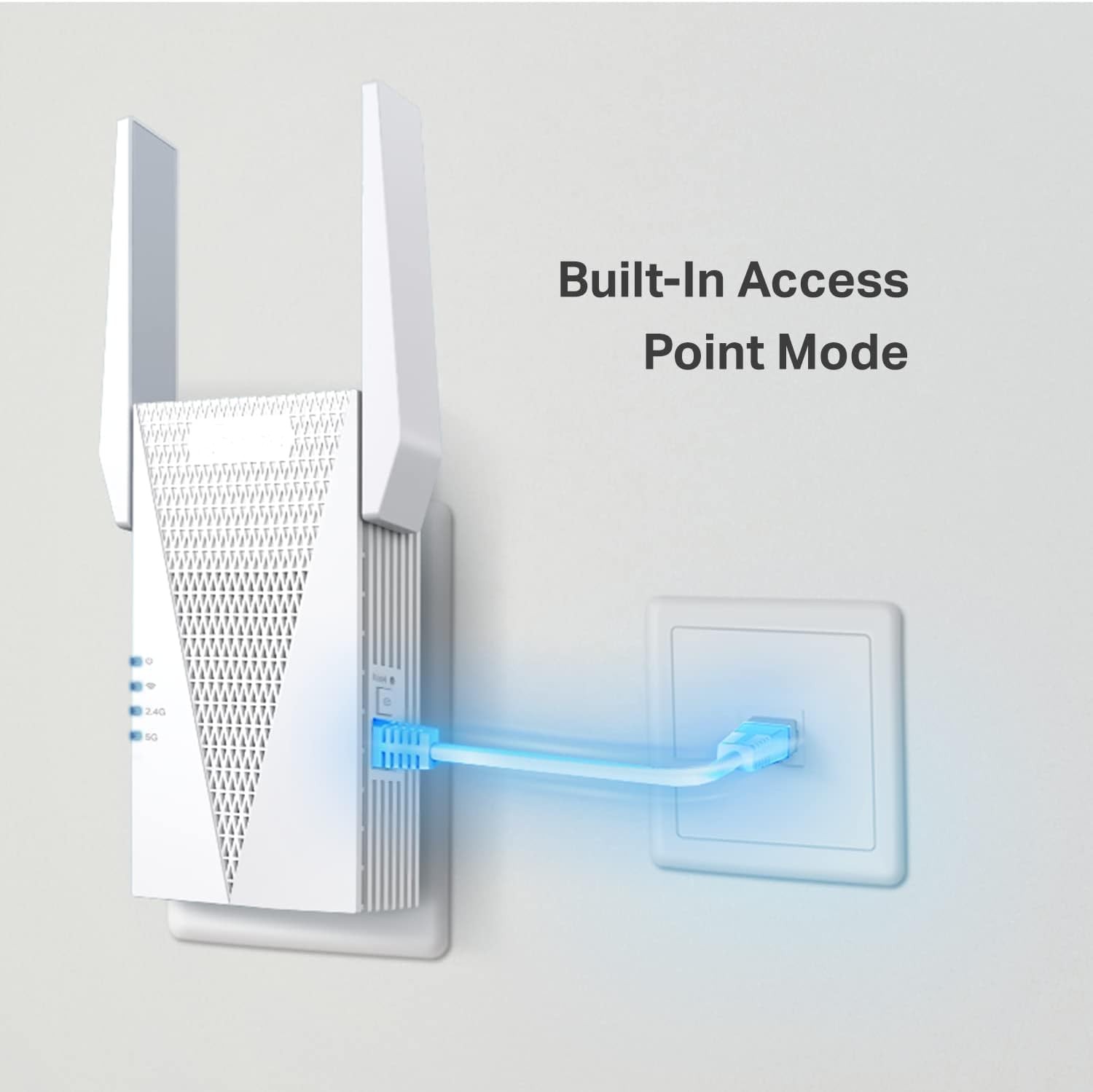
Range Extender Setup
Connect a compatible TP-Link range extender to your existing network and check its placement in the app.
Everyday Network Controls
View connected devices, update WiFi settings, and manage supported network controls without opening a browser. Users can manage TP-Link Router login page using web address http://tplinkwifi.net or IP address http://192.168.1.1. In case of TP-Link Repeater use web address http;//tplinkrepeater.net or http://192.168.0.254
Set Up Your TP-Link Router with Tether
Step 1
Step 2
Step 3
TP-Link Wi-Fi Router Setup using Tether App
Setting up your TP-Link router using the Tether app is a convenient and user-friendly way to get your network up and running. The Tether app provides a simple and intuitive interface that allows you to easily manage and configure your router settings. In this guide, we will walk you through the process of setting up your TP-Link router using the Tether app.
STEP1: Tether App Installation
The first step is to download and install the Tether app on your mobile device. The app is available for both iOS and Android devices and can be downloaded from the respective app stores. Once you have downloaded the app, proceed to the next step.
Step 2: Connect to your TP-Link Router
Make sure that your mobile device is connected to the Wi-Fi network that is already being broadcasted by your TP-Link router. Open the Tether app and it will automatically detect the router that you are currently connected to. Tap on the router name to establish a connection.
Step 3: Configure Router Settings
Once you are connected to your TP-Link router through the Tether mobile app, you will have access to a wide range of settings and configurations. You can set up your Wi-Fi network name and password, manage connected devices, enable guest networks, and much more. Take some time to explore the app and customize the settings according to your preferences.
Step 4: Additional Features
The Tether app also offers additional features that can enhance your network experience. You can enable parental controls to restrict access to certain websites, set up a VPN server for secure remote access, and configure advanced network settings such as port forwarding and DHCP reservation. These features allow you to have greater control over your network and ensure a secure and optimized connection.
Setting up your TP-Link router using the Tether app is a hassle-free process that gives you full control over your network. The app’s intuitive interface and comprehensive features make it easy to customize your router settings according to your needs. Whether you want to set up a secure Wi-Fi network, manage connected devices, or configure advanced network settings, the Tether app has got you covered. Download the app today and enjoy a seamless and personalized network experience.
Set Up a TP-Link Repeater with Tether App
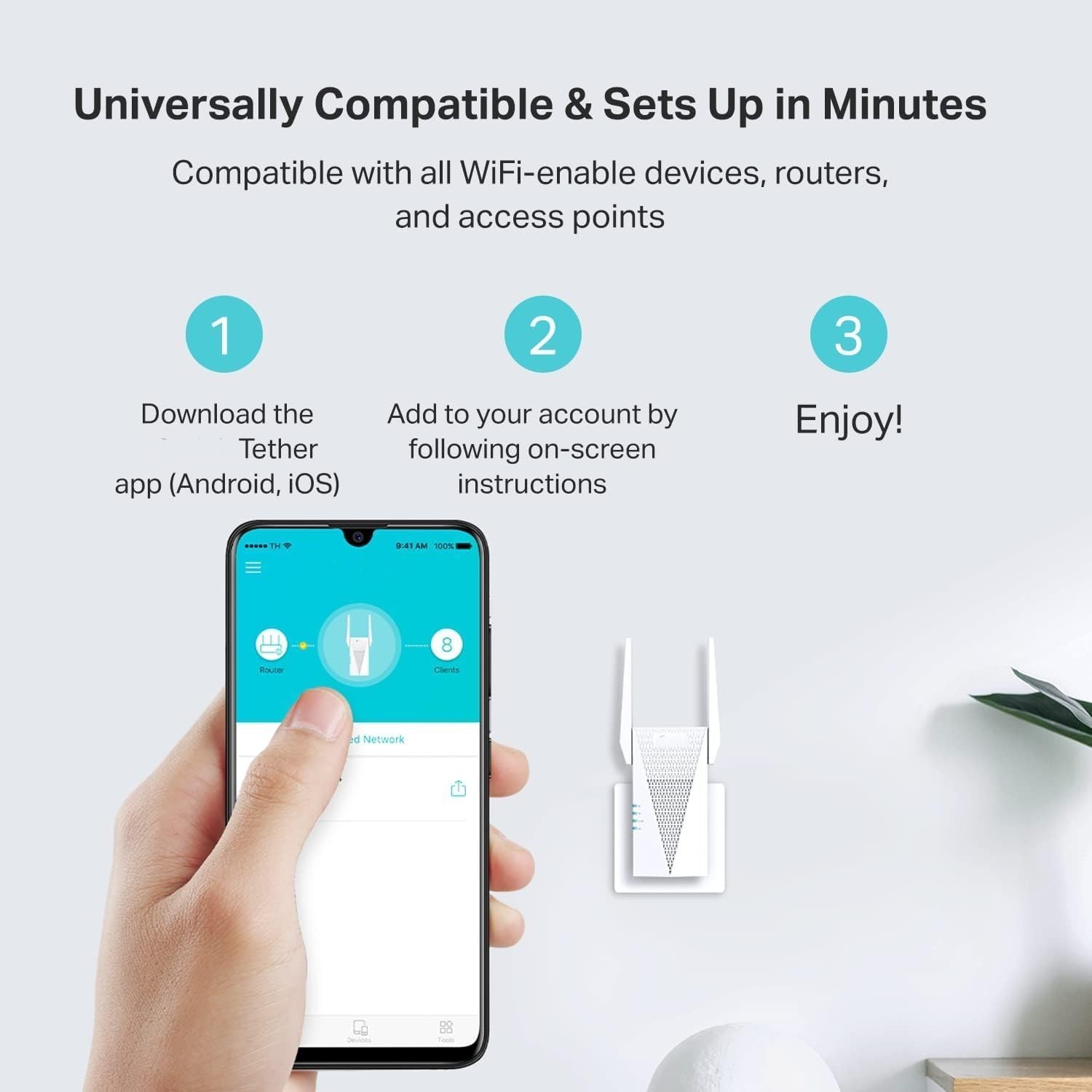
Connect a compatible range extender to your router in three steps using the Tether app.
1
Power On and Connect
Plug the Repeater in near your router. Connect your phone to the Repeater’s default Wi-Fi network, then open Tether.
2
Add the Repeater
Select the Repeater Model in Tether, create an admin password if prompted, and choose the router network you want to extend.
3
Finish and Reposition
Enter your router’s Wi-Fi password, apply the settings, and move the repeater to a spot with a reliable router signal.
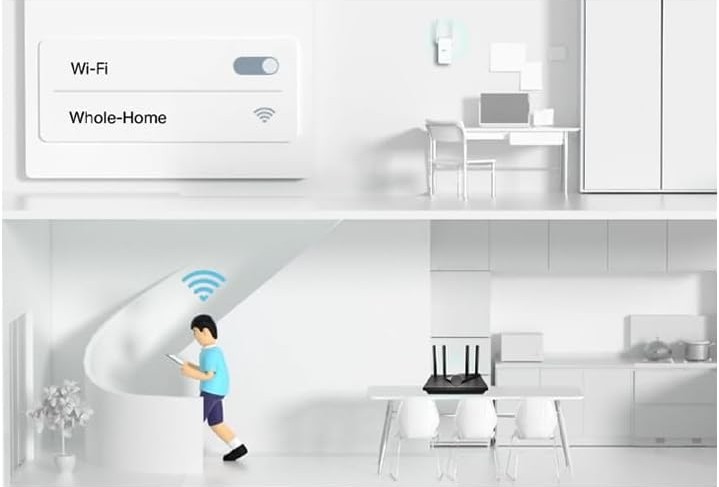
TP-Link Repeater Setup using Tether WiFi App
A TP-Link Wi-Fi repeater is a great device for extending the range and coverage of your wireless network. To set up your TP-Link repeater, you can use the Tether app, which provides a user-friendly interface and makes the process quick and easy.
Step 1: Connect to the Repeater
First, connect your mobile device to the Wi-Fi network that you want to extend using the TP-Link repeater. Open the Tether WiFi App on your device.
Step 2: Discover the Repeater
After opening the Tether app, it will automatically detect your TP-Link repeater. Tap on the ‘Discover’ button to initiate the setup process.
Step 3: Configure the Repeater
Once the app has discovered your TP-Link repeater, it will display a list of available Wi-Fi networks. Select the network that you want to extend and enter the password if required. You can also change the SSID (network name) and password for the extended network if desired.
Step 4: Finalize the Setup
After configuring the settings, tap on the ‘Next’ button to finalize the setup. The Tether mobile app will apply the changes and connect your TP-Link repeater to the selected Wi-Fi network. Once the setup is complete, you can disconnect your mobile device from the repeater and enjoy the extended network coverage.
Setting up a TP-Link repeater using the Tether app is a simple and convenient process. With just a few steps, you can extend the range of your Wi-Fi network and improve the connectivity in your home or office. Whether you need to boost the signal in a specific area or cover a larger area, a TP-Link repeater and the Tether mobile app make it easy to achieve.
TP-Link Tether App
The TP-Link Tether App is a game-changer when it comes to managing your home network. It’s a mobile application that allows you to easily control and monitor your TP-Link Wi-Fi router from anywhere, at any time. Gone are the days of being tied down to a desktop computer or laptop – with this app, you have the power to manage everything right from your smartphone or tablet.
One of the standout features of the Tether App is its intuitive interface. Whether you’re a tech genius or a complete novice, navigating through the app is as simple as can be. With just a few taps on your screen, you can adjust settings, set up parental controls, prioritize devices for faster internet speeds, and even create guest networks for visitors without compromising your security.
But it doesn’t stop there – the Tether App offers an array of advanced features that cater to all your networking needs. Need to troubleshoot connectivity issues? No problem! The app provides detailed information about each connected device and allows you to pinpoint any potential problems in real-time. Another impressive feature is remote management. Say goodbye to rushing back home just because you forgot to turn off the Wi-Fi before leaving – with this app, you can remotely control your network no matter where life takes you.
With seamless integration across multiple platforms and devices, including iOS and Android operating systems, the TP-Link Tether App truly brings convenience into our lives like never before.So whether you’re looking for effortless control over your home network or simply want peace of mind knowing that everything is running smoothly while on-the-go, look no further than the TP-Link Tether App – it’s both reliable and user-friendly.
Tether App Features and Specifications
TP-Link Tether App is an innovative mobile application that allows you to easily manage and control your TP-Link routers or range extenders from the convenience of your smartphone. With its user-friendly interface, this app provides a seamless experience for users to configure and monitor their network settings.
- One of the standout features of the TP-Link Tether App is its ability to provide real-time statistics on internet speed, data usage, and connected devices. This helps users keep track of their network performance and ensure optimal connectivity at all times.
- Another impressive feature is the remote management capability that enables you to access and control your home network even when you’re away. Whether it’s setting up parental controls or managing guest networks, you can do it all with just a few taps on your phone.
- Furthermore, Tether WiFi App supports easy setup for new devices through its intuitive step-by-step instructions. You no longer have to struggle with complicated manuals or technical jargon – simply follow the prompts in the app and get your router up and running in no time.
- Moreover, this app supports multiple languages, making it accessible to users from different regions around the world. It also offers various security features like firewall settings and device access control to ensure a safe browsing experience for everyone using your network.
- TP-Link Tether App combines functionality with simplicity, making it an essential tool for anyone looking for hassle-free management of their TP-Link devices. Download now and take full control over your home network right from the palm of your hand!
Tether App Frequently Asked Questions
Find answers to common questions about installing Tether, setting up TP-Link devices, and checking compatibility.
Where can I download the Tether app?
Download TP-Link Tether from the Apple App Store or Google Play. Check that TP-Link is listed as the developer before installing.
How do I install Tether on my phone?
Open your phone’s app store, search for TP-Link Tether, and tap Install or Get. Once installed, open the app and follow the on-screen instructions.
How do I set up a TP-Link router with Tether?
Connect your phone to the router’s WiFi, open Tether, and select the router. Follow the prompts to create an administrator password and configure your internet and wireless settings.
Can I set up a TP-Link range extender in Tether?
Yes, if your extender supports Tether. Plug it in near your router, connect your phone to the extender’s default WiFi, and follow the setup steps in the app.
Which phones are compatible with Tether?
Tether is available for supported iOS and Android devices. Check its App Store or Google Play listing for current operating system requirements.
Does Tether work with every TP-Link device?
No. Tether supports select TP-Link routers and range extenders. Check your device model’s specifications or TP-Link’s compatibility information before starting setup.
Why can’t Tether find my TP-Link device?
Make sure the device is powered on and your phone is connected to its WiFi network. Enable any permissions the app requests, then reopen Tether and try again.
Do I need internet access to set up my device?
You can usually connect to a new router or extender locally during setup, but you’ll need an internet connection to download the app and use online features.
What should I do if setup fails?
Restart your phone and TP-Link device, confirm that you selected the correct WiFi network, and try again. If the issue continues, consult your device’s setup guide or contact TP-Link support.